 Skip to content
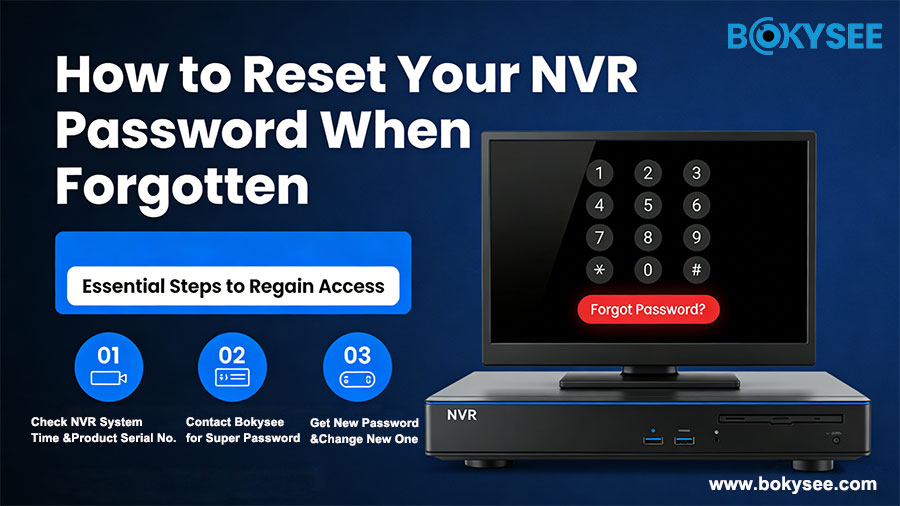
In every modern security camera system, the Network Video Recorder (NVR) functions as the heart of the entire surveillance network. It manages your IP cameras, stores video footage, controls user permissions, and provides advanced features such as motion detection, AI analytics, and remote monitoring. However, one of the most common issues users face during daily operation is simply this: forgetting the NVR password.
A forgotten password prevents you from logging into the system, managing settings, viewing recordings, and ensuring your security cameras are working properly. If this happens, you might worry that your system is locked permanently or that you need a full factory reset. Fortunately, this is not the case.
In this detailed guide, we’ll explain what to do if you forget your NVR password, how Bokysee supports secure password recovery, and why the super password method is the safest and most effective solution. This article also covers best practices, security tips, and real-world troubleshooting insights to help both installers and end-users maintain seamless control of their NVR systems.
Why NVR Password Security Is So Important
Modern NVRs store highly sensitive video data, including:
-
Real-time monitoring from IP cameras
-
Recorded footage on the hard drive
-
Personal account information
-
Network configurations
-
ONVIF and device pairing settings
-
WiFi or LAN access credentials
Because of the sensitive nature of this data, NVR manufacturers—including Bokysee—implement strict password protection mechanisms. This means NVR passwords cannot be retrieved, only reset through authorized processes.
This ensures:
-
Protection against unauthorized access
-
Prevention of hacking attempts
-
Security of footage in corporate and residential environments
-
Compliance with global CCTV system security standards
Therefore, password recovery must be secure, verifiable, and controlled.
Why Users Often Forget Their NVR Password
Understanding the reason behind password loss helps prevent similar issues in the future. Common situations include:
-
Installer did not provide the password to the owner
-
Password was written down but later misplaced
-
System was installed long ago and rarely accessed
-
Multiple users share the system and no one remembers the latest password
-
Password was changed accidentally
-
Firmware upgraded and the password was reset or invalidated
-
NVR temporarily locked due to too many incorrect attempts
Because many users primarily rely on mobile apps for daily monitoring, login to the NVR itself becomes infrequent—leading to forgotten credentials.
Is There a Default Admin Password for NVR Systems?
Most users search Google for terms like:
-
NVR default password
-
Network Video Recorder admin login
-
What is the default username on my NVR?
For security reasons, many brands—including Bokysee—do NOT use universal default passwords anymore. This prevents unauthorized access in case the device is stolen or exposed.
Therefore, the correct procedure for a forgotten password is always the super password reset method.
Bokysee’s Official Reset NVR Password Method: Using the Time-Based Super Password
If you forget your password, Bokysee offers a professional, secure, and fast solution. Our technical team can generate a time-sensitive super password based on your NVR’s internal date and time.
This method is safe because:
-
The password is valid only for a short period
-
It works only for your specific device
-
It does not expose system vulnerabilities
-
It ensures the NVR is not accessed by unauthorized users
-
It does not erase your settings or recorded videos
Below is the complete step-by-step procedure.
Step-by-Step Guide: How to Reset Your NVR Password
Step 1: Open the NVR Menu and Check the System Time
Go to the login screen of your NVR and take note of the exact date and time displayed on the NVR.
This information must come from the device, not from your phone or PC.
Step 2: Contact Bokysee Support
Visit www.bokysee.com or email your Bokysee sales representative. Provide:
-
A clear photo of the NVR login/menu screen
-
The system date and time, Product Serial Number
-
Your NVR model (e.g., 4CH, 8CH, 16CH IP NVR)
-
A short explanation of the issue
Our support team will analyze the information and generate a unique, time-based super password.
Step 3: Enter the Super Password
Once you receive your super password:
-
Enter it into the login screen
-
Make sure to input it during the valid time window
-
If it expires, we can generate a new one instantly
After entering the super password, you should successfully gain access to your NVR system.
Step 4: Create a New Password Immediately
Navigate to:
System Settings → User → Modify Password
Then set:
-
A new strong password (recommended: 8–12 characters)
-
A mix of upper/lowercase letters, numbers, and symbols
This ensures long-term security and prevents future lockouts.
Why Not Use a Hardware Reset or Factory Button?
Many customers ask:
-
“Is there a reset button on the NVR?”
-
“Can I use a paper clip to reset the NVR?”
-
“Can a factory reset restore access?”
The answer is generally no, because:
-
Many NVRs do not include physical reset buttons
-
Factory resets may erase recordings or settings
-
Unauthorized reset methods can damage the device
-
A secure system must restrict uncontrolled resets
The super password method remains the safest and most reliable option.
Advanced Troubleshooting Tips Before Resetting Your NVR
Sometimes the issue is not the password itself. Try these checks first:
✔ Use the default username
Most NVRs still use “admin” as the username.
✔ Check if Caps Lock is ON
Passwords are case-sensitive.
✔ Try logging in through the mobile app
Some apps allow password verification or reset.
✔ Restart the NVR
Temporary login lockouts may reset after rebooting.
✔ Ensure the connected mouse is working properly
If the mouse is malfunctioning, input errors may occur.
If all these fail, proceed with the super password recovery.
Best Practices to Avoid Future NVR Password Problems
To keep your surveillance system secure and avoid repeated recovery requests, here are recommended strategies:
1. Record the Password in a Safe Location
Use digital password managers or store it inside a secure notebook.
2. Set Up Multiple User Accounts
Create separate accounts for installers, employees, and family members.
3. Enable Cloud App Access
Many IP camera NVR systems support app-based login that can help with secondary verification.
4. Avoid Frequent Password Changes
Unnecessary changes lead to confusion among multiple users.
5. Update Firmware Responsibly
Some firmware updates require re-authentication.
6. Perform Routine System Checks
Log in at least once a month to ensure credentials remain familiar.
Why Bokysee Offers a Better Password Recovery Experience
As a professional manufacturer of security cameras and NVR systems, Bokysee is committed to delivering:
-
Fast technical support
-
Secure NVR super password generation
-
High compatibility with multi-brand IP cameras
-
Professional customization (OEM/ODM)
-
Reliable firmware and system stability
-
Clear setup and documentation for installers
Our NVR products are widely used in:
-
Homes and apartments
-
Warehouses
-
Retail shops
-
Office buildings
-
Industrial sites
-
Schools and hospitals
-
Government surveillance projects
Anytime you encounter login issues, Bokysee support is always ready to assist.
Conclusion
Forgetting your NVR password can feel frustrating, but it is a very common situation for security camera users. Fortunately, the solution is simple, secure, and fast. By providing Bokysee with the system date and time displayed on your NVR Menu, you can receive a temporary super password that allows you to log in, reset your credentials, and regain full control.
This method protects your data, ensures system security, and maintains the integrity of your surveillance footage—all without damaging your device or requiring a factory reset.
If you are currently experiencing password issues with your NVR, contact us through www.bokysee.com and our support team will help you recover your system quickly.
See Also
A Comprehensive Guide to NVR Button Battery Usage
Mastering Security Camera Installation and Device Oversight
Connecting Security Cameras and Resolving Device Issues Effectively
Essential Tips for Purchasing 4G Security Cameras
Step-by-Step Instructions for Installing an IP Camera System







 English
  Spanish
  Russian